
Mcp Server Okppt
by NeekChaw
这个项目是一个基于MCP (Model Context Protocol) 的服务器工具,名为 "MCP OKPPT Server"。它的核心功能是允许大型语言模型(如Claude、GPT等)通过生成SVG图像来间接设计和创建PowerPoint演示文稿。工具负责将这些SVG图像高质量地插入到PPTX幻灯片中,并保留其矢量特性,确保图像在PowerPoint中可缩放且清晰。
No known CVEs
No license
Stale
Last commit 355d ago
Works with most clients
Transport: stdio
9 tools · ~914 tok
Grade B · 0.5% of 200K ctx
Step 1
Install in your client
Config is the same across clients — only the file and path differ.
CD
Supported in Claude Desktopstdio · Node 18+
Paste into ~/Library/Application Support/Claude/claude_desktop_config.json
{
  "mcpServers": {
    "mcp-server-okppt": {
      "command": "<see-readme>",
      "args": []
    }
  }
}
Are you the author?
Add this badge to your README to show your security score and help users find safe servers.
Embed in your READMEAbout badges →
[](https://mcppedia.org/s/mcp-server-okppt)
Read me
What Mcp Server Okppt does
一个基于Model Context Protocol (MCP)的服务器工具,专门用于将SVG图像插入到PowerPoint演示文稿中。它能够保留SVG的矢量特性,确保在PowerPoint中显示的图像保持高品质和可缩放性。
Test This Server
No automated test available for this server. Check the GitHub README for setup instructions.
Loading README…
Scored, not listed
Why this score
Five weighted categories — click any category to see the underlying evidence.
Score breakdown
58/100across 5 weighted dimensions
0255075100
14
16
15
10
−42
Security
Maintenance
Efficiency
Documentation
Compatibility
Categoriesclick a row to see evidence
Security
OSV.devNo known CVEs.
No package registry to scan.
Inventory
Tools (9)
Click any tool to inspect its schema.
~914 tokens total
Community
Reviews
Be the first to review
Have you used this server?
Share your experience — it helps other developers decide.
How easy was setup?Did it work reliably?How was the documentation?
Sign in to write a review.
Frequently Asked Questions
- Is Mcp Server Okppt safe to use?
- Mcp Server Okppt has no known CVEs as of the latest MCPpedia security scan. It does not require authentication, so any local process can connect — keep this in mind in shared environments.
- How do I install Mcp Server Okppt?
- Mcp Server Okppt can be installed by cloning its GitHub repository and following the setup instructions in the README.
- What can Mcp Server Okppt do?
- Mcp Server Okppt provides 9 tools: insert_svg, list_files, get_file_info, convert_svg_to_png, get_pptx_info and 4 more. See the full tools list on the server page for descriptions and parameters.
- What AI clients work with Mcp Server Okppt?
- Mcp Server Okppt is compatible with claude-desktop, cursor, claude-code. It uses stdio transport.
- Is Mcp Server Okppt actively maintained?
- Mcp Server Okppt is less actively maintained — last commit was 355 days ago. It has 68 GitHub stars.
Related
Similar servers
Others in design
 Figma Console Mcp96
MCP server for accessing Figma plugin console logs and screenshots via Cloudflare Workers or local mode
1.7k 2
I
io.github.miroapp/mcp-server95Official Miro MCP server - Supports context to code and creating diagrams, docs, and data tables.
111 7
I
Image MCP Server94AI image generation and editing with prompt optimization and quality presets. Powered by Nano Banana
114 2
C
Cds Mcp Server93Coinbase Design System - MCP Server
476 5
MCP Security Weekly
Get CVE alerts and security updates for Mcp Server Okppt and similar servers.
Community
Discussion
Start a conversation
Ask a question, share a tip, or report an issue.
Has anyone used this with Cursor?How do you handle auth?Any alternatives?
Sign in to join the discussion.

 2008年金融危机分析PPT封面
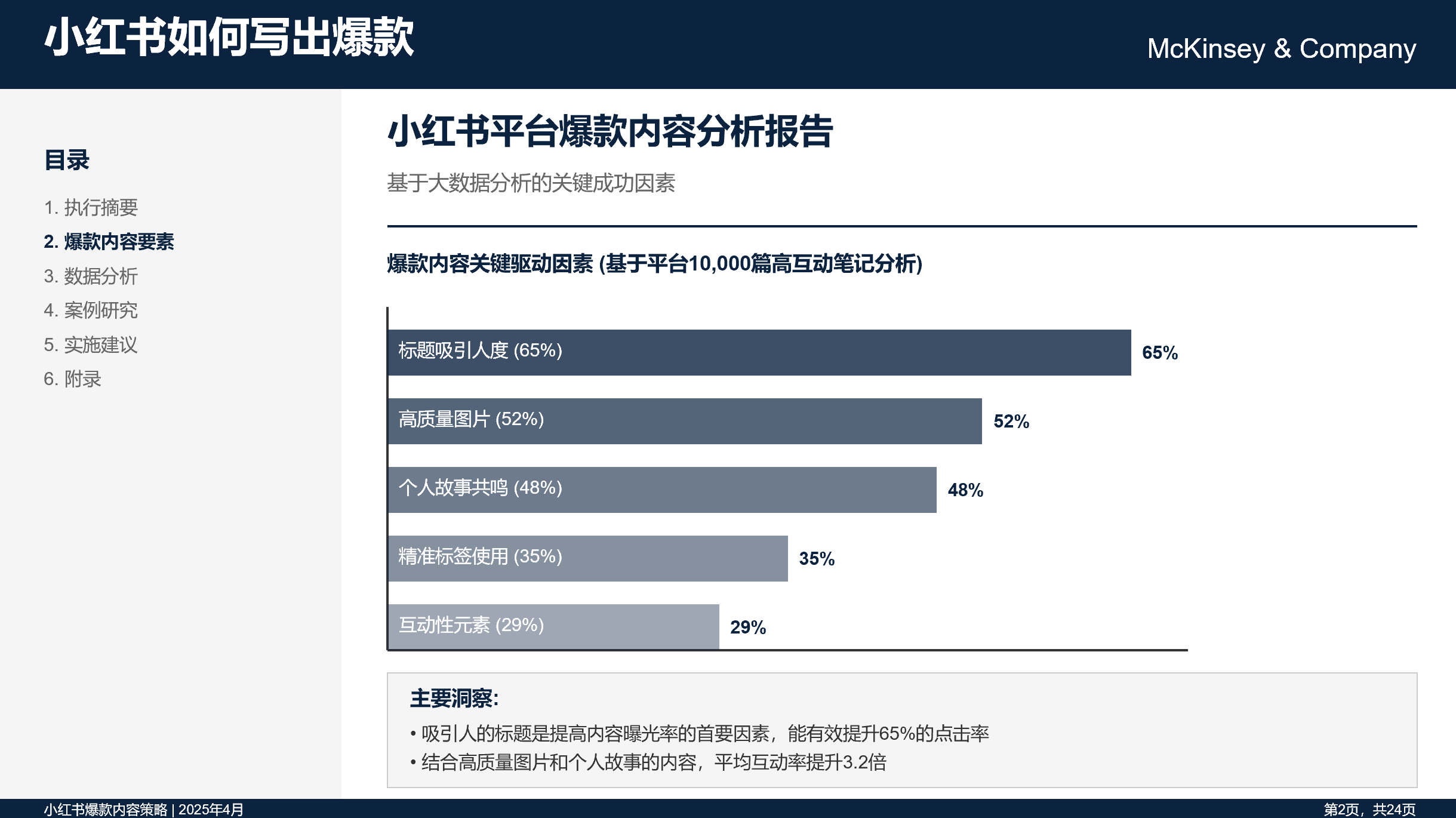 小红书爆款内容分析报告PPT页面